Activity tag condition
This feature requires Level Up XP+ Premium.
The Activity tag condition allows you to target multiple activities at once by matching a tag applied to them. Rather than creating a separate rule for each activity, you assign a tag to as many activities as you like and let a single rule cover them all.
Setting it up in Action rules
- Navigate to the Action rules page.
- Add a new action, or add a condition to an existing one.
- Choose the Activity tag condition.
- Enter the tag name to match (e.g.
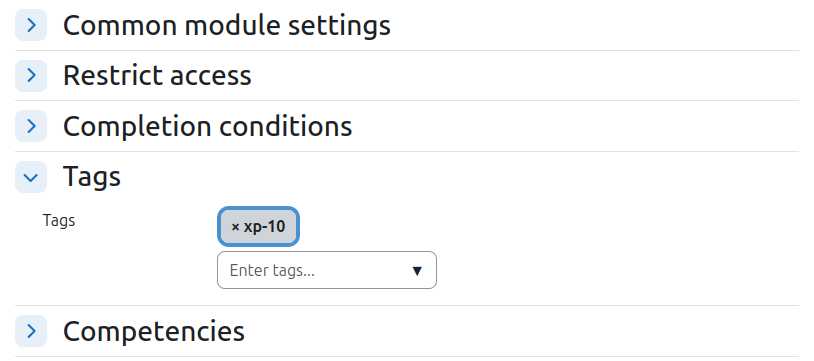
xp-10). - In each activity's settings, add the corresponding tag.
From this point on, whenever a learner performs the action in a tagged activity, they will earn the configured points.
Setting it up in Completion rules
- Navigate to the Completion rules page.
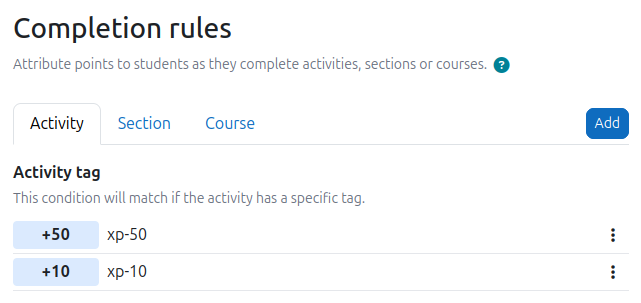
- Click Add a condition and select Activity tag.
- Enter the tag name to match (e.g.
xp-10). - Set the number of points to award (e.g.
10). - In each activity's settings, add the corresponding tag and ensure activity completion is enabled for it.
From this point on, whenever a learner completes a tagged activity, they will earn the configured points.
Naming your tags
The real power of this feature comes from how you name your tags. A well-chosen naming convention lets you cover an entire course with just a handful of rules.
The simplest approach is to encode the point value in the tag name itself, for example xp-10, xp-25, or xp-50. You create one rule per tag, and then freely assign those tags to as many activities as you like, across sections, activity types, anything. Adding a new activity to the mix requires no changes to your rules, just tag the activity and it's done.
If you'd rather not commit point values to tag names (perhaps you want to be able to tune the points later without retagging everything), use semantic tiers instead: xp-small, xp-medium, xp-large. You decide what each tier is worth in the rule, and changing the points for all "medium" activities is a single edit.
Finding tagged activities
Moodle's Tags block can be added to a course to display all tags in use. Clicking a tag shows all activities associated with it, making it a handy way for educators to get an overview of which activities have been tagged.
Note that learners can also see and use the Tags block. If you prefer to keep tags hidden from learners, open the block's settings, navigate to Permissions, and add the Student role to the Prohibited column of the moodle/block:view permission. This prevents learners from seeing the block entirely.